
Tax Receipts for Donations | Electronic Signatures
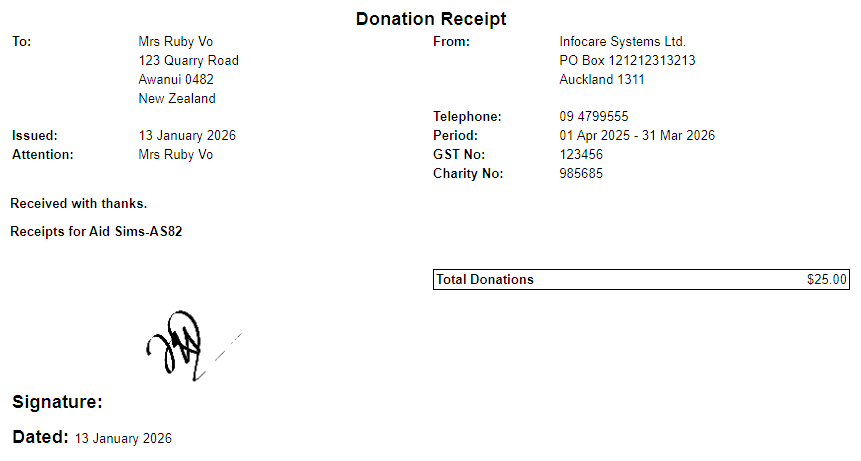
An enhancement has been made to the Donation Tax Receipt whereby electronic signatures can now be added.
The electronic signature image file is uploaded into Infocare by going to Utilities > File Upload > Select browse to locate the saved electronic signature > Select Continue
The signature is then added to the tax receipt template by going to Centre > Centre Options > Billing > In the field titled "Electronic Signature file name for Tax Receipts", type in the name of the electronic signature file (exactly as it is saved under Utilities > File Upload which is visible in Utilities > File Download) > Select Update.
When Tax Receipts are created the electronic signature will appear as in the screen shot below.
Billing > Accounts Processing > Tax Receipts
GoEnquiry! - Enhancement to Reports
An enhancement has been made to GoEnquiry! reports, "Age" can now be selected as an option under the drop down list titled "Field".
Utilities > GoEnquiry! > Reports > Field 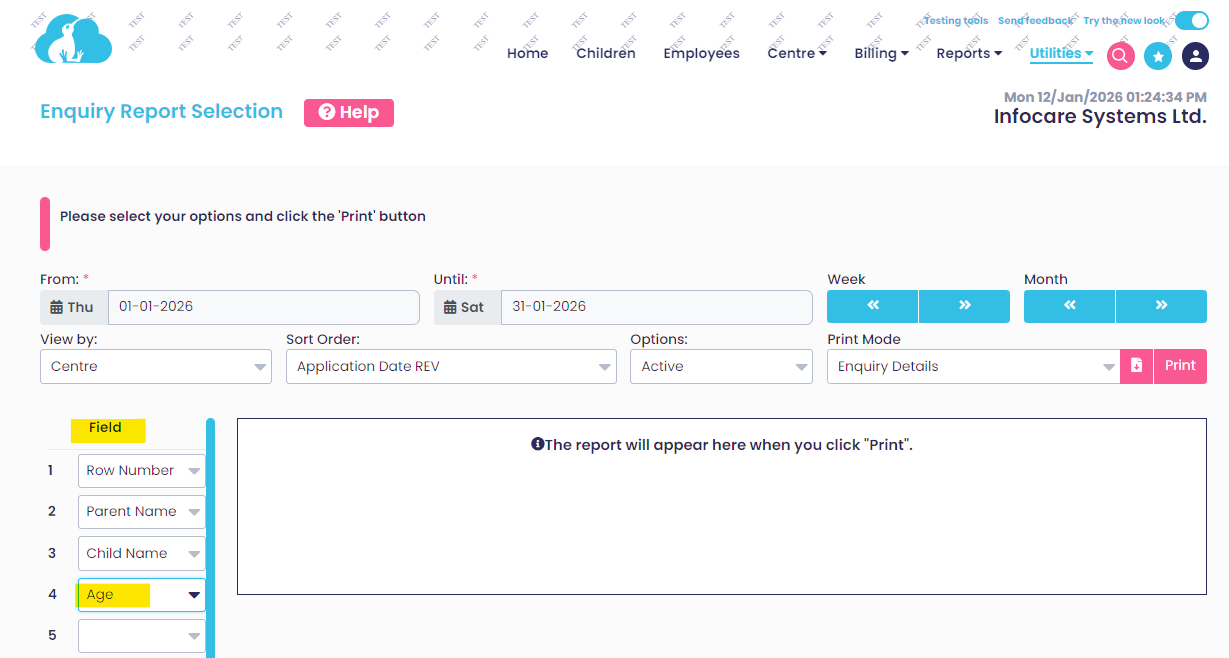
Staff Time Summary Report Enhancement
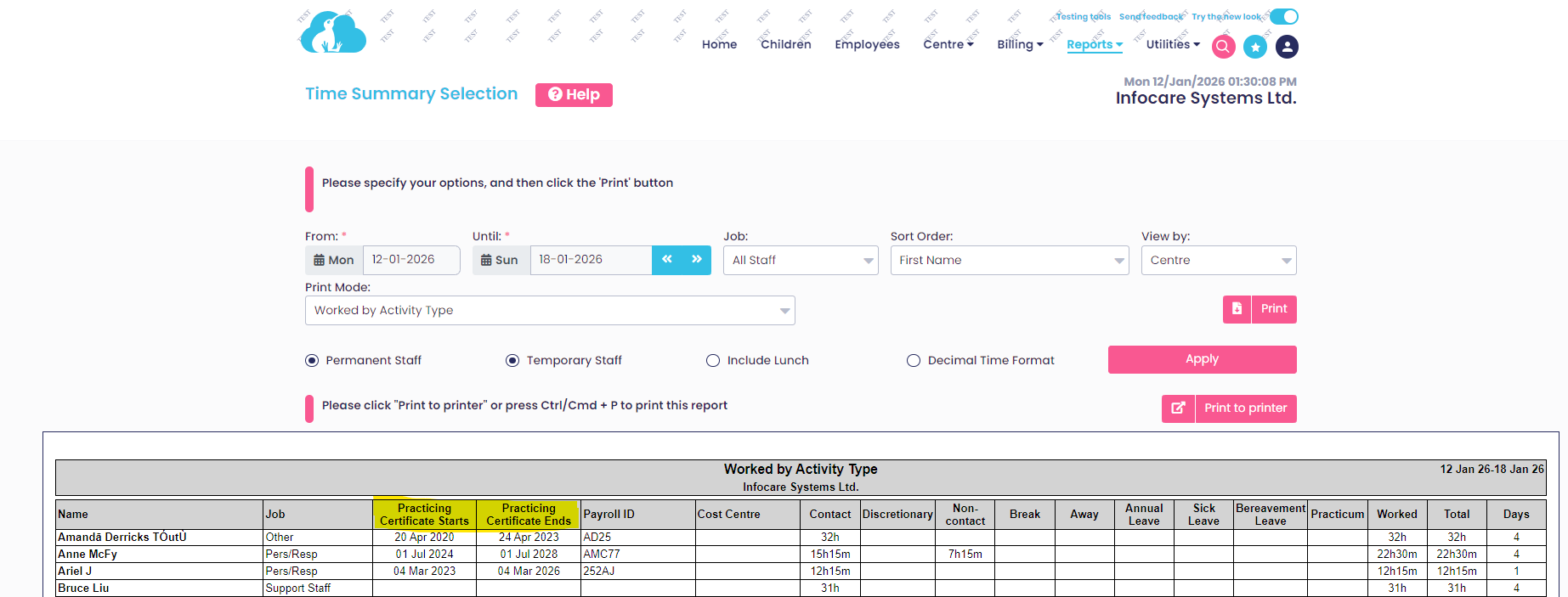
An enhancement has been made to the Time Summary Report, this report now includes details of the employees Practicing Certificate start date and Practicing Certificate end dates.
Reports > Staff Reports > Time Summary
Previous Release V4.21.15 - Release Notice - WINZ MSD UPLOAD
WINZ/MSD file upload - available from 21st November 2025
The data for WINZ subsidy payments can now be uploaded into Infocare.
Services will receive an email from WINZ/MSD with a .csv file attachment which will include the details of subsidies paid for children attending the Service.
Click Here to view a video tutorial.
Save the WINZ .csv File to your Computer
- Open the email from WINZ
- Click on the .csv file
- Downloaded the .csv
- Save the .csv file the your computer
To upload the WINZ subsidy payment information
- Select Billing
- Select Batch Receipts
- From the drop down list list next to pink Upload file button select "WINZ/MSD"
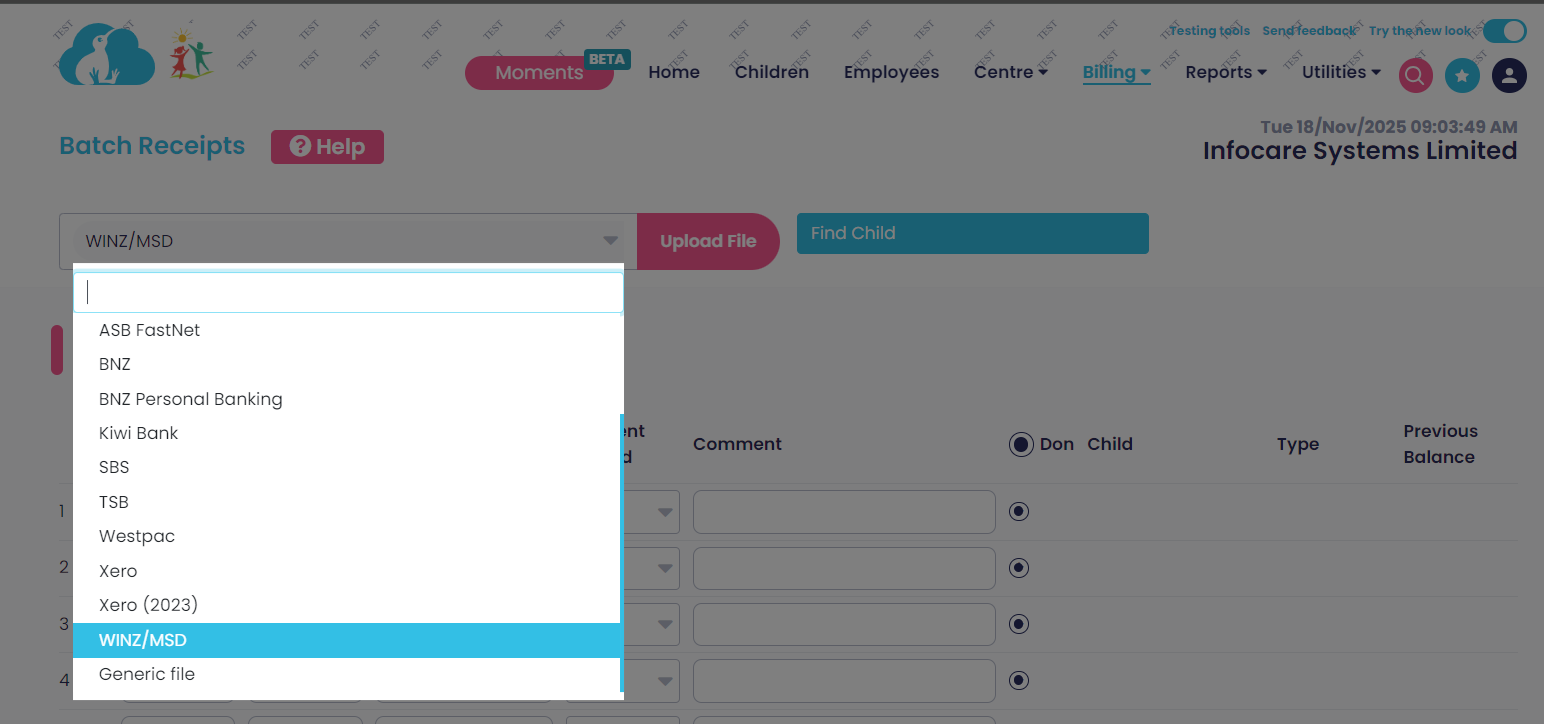
4. From the File Upload pop up box select Browse
5. Locate the saved WINZ/MSD .csv file from your computer
6. Select Open or double click on the file name
7. Select Continue
8.The information from the csv file will populate into the cells on the batch receipts screen
9. Check the information and modify if required
10. Validate and then Commit.