
When you have finished reading the help notes please close this window.
The ECE Return screen is used to collect data for statistical purposes for the Ministry of Education. The information collected here is not collected elsewhere.
Each year the MoE will provide advance notice of the dates of the ECE Return. The ECE Return must be completed within the period specified by the MoE.
The ECE return has recently been updated with a new layout, if you chose to submit the ECE return using the new layout, information within each employees menu will need to be updated first. You can choose to submit the ECE Return using the old format or the new format. Both are available for use under the Reports menu.
New fields that need to be populated are:
a) Has worked as a permanently employed ECE Teacher (or Home-Based Coordinator) before? (Yes/No)
b) Came directly from another ECE Service? (Yes/No)
c) Paid (Yes/No)
d) Full Time (25+ hours) (Yes/No)
e) Role Status
f) Highest ECE Qualification
g) Destination of Leaving teacher - This field will only be visible where a staff member has a leave date entered
The above fields must be populated before the ECE return can be completed and submitted successfully. Currently these fields are not set as mandatory within the Centre's database set up as this would impede entering any data within any employee's profile screen.
Our Customer Success Team can enable these fields to be mandatory moving forward. If you would like this option, please contact our Helpdesk - help@infocaresolutions.co.nz
Completing the ECE Return
You can begin populating data within the ECE return and it will be saved for you to return to continue completing by selecting "continue"
NOTE: if "start again" is selected the data will be deleted and will need to be re-entered.
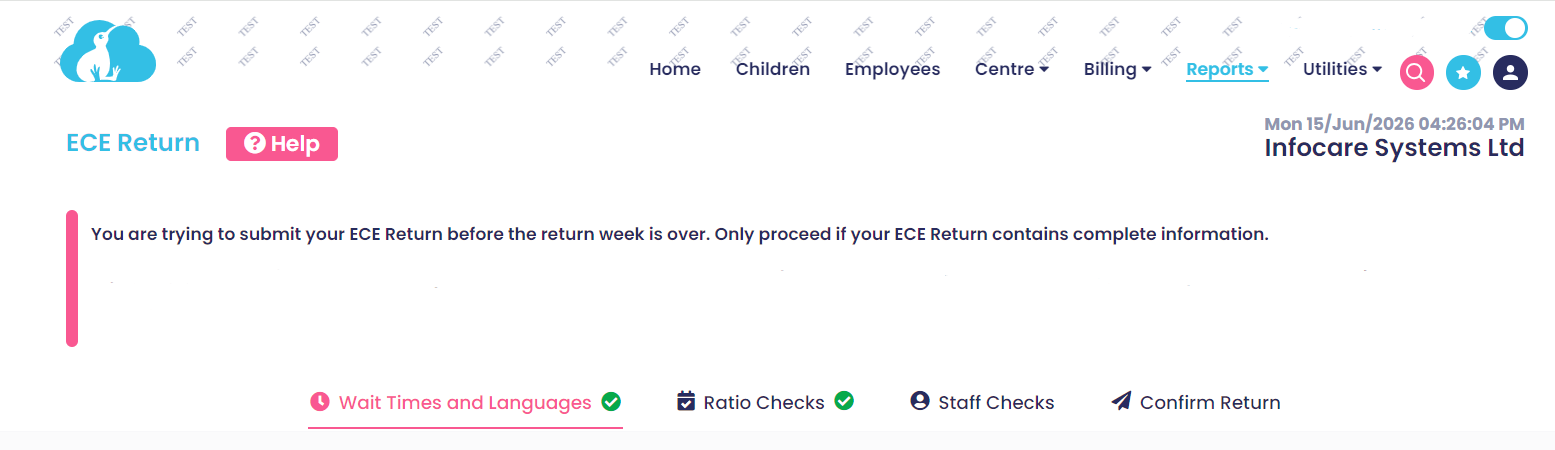
Waiting Times and Languages Tab
Wait times at your service
Select the applicable option from the drop-down list.
Teaching Languages at Your Service
Select the applicable option from the drop-down list. The total percentage time used for languages combined must equal 100%.
Once the data has been populated and Continue is selected, a green tick will appear next to "Wait Times and Languages" to indicate this part of the Return has been successfully completed.
Ratio Checks Tab
The ratio checks tab will indicate if there are any days within the ECE Census week where MoE ratios are not met.
Where a ratio warning appears, the sign in sheets and/or staff timesheets will need to be modified before you can continue to complete the next tab. A green tick with appear next to "Ratio Checks" to indicate this part of the return has been successfully completed.
Staff Checks Tab
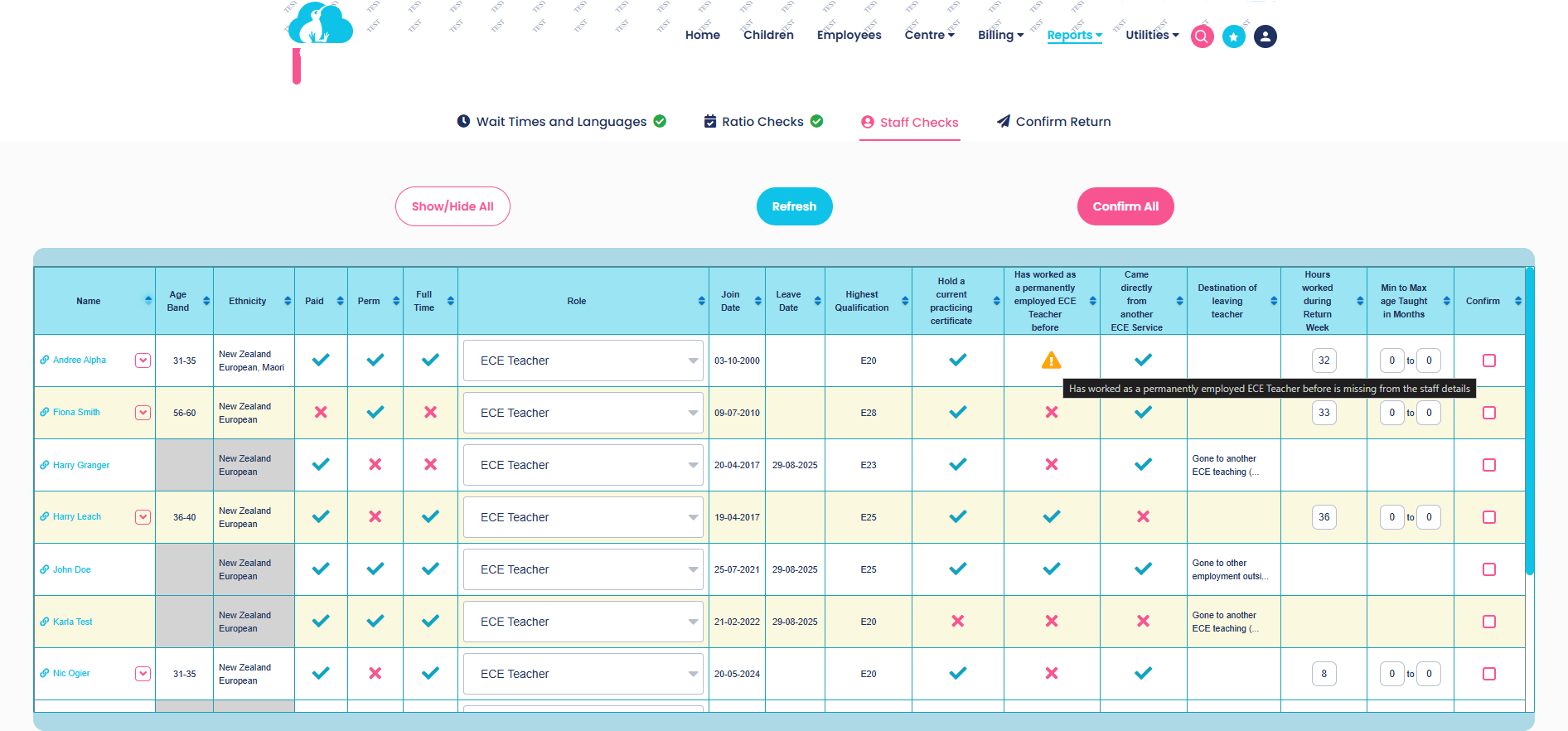
The Staff Checks tab automatically populates the majority of staff data required for the ECE return.
Provided the data is pre-populated in the employee screen the required information will be automatically populated within the Staff Check table.
Non-teaching staff that have not been recorded on timesheets will require Hours Worked During the Return week to be populated. Value can be zero if they didn't work.
The column titled "Min to Max age taught in months" is the only field that needs to be manually populated to show the age of children the employee worked with during Census week.
If your service doesn't report on non-working relievers during the Return Week. Use the toggle Display Reutrn Week only.
This will only display staff who worked census week or must be reported on.

If a staff member is showing within Staff Checks and you wish to exclude then from the return, click the Exclude button below their name:
Use the refresh button to reset the Staff Checks page and display all excluded staff.
NOTE: When there is a change to an employee's selected options within Census week, the information will need to be updated within the Employee Profile screen to the option that applies to the employee during Census week. If any changes apply only during Census week the employee profile screen will need to be updated after the ECE Census has been completed.
For example: if the employee began being paid for the hours they work during ECE Census week, update the option in the Paid * field from No to Yes before completing the ECE Census. If the employee changes their role during Census week, update the role within the employee's profile or add the additional role directly within the ECE return Staff checks screen.
Rows highlighted with a light yellow colour indicate staff who have worked during Census week that are part of the Central Pool.
An orange warning will appear in the staff checks screen for fields that need to be checked/updated, hover over the warning to see the warning content. You can click on the employees name to go directly to the employee update screen to update any missed/incorrect data. When you return to the ECE return to continue checking select the refresh button.
Once the data has been checked and modified within the employee update screen, if required, confirm the data is correct by selecting "Confirm All" or by clicking the individual Confirm box to the right hand side of each row. A green tick with appear next to "Staff Checks" to indicate this part of the return has been successfully completed.
Confirm Return Tab
Once the data has been checked, confirm the return by selecting Yes.
Submitting/Saving the ECE Return
The information collected will be sent electronically to the MoE once you select submit.
You will be able to edit the data and re-submit if needed.
A copy of the Return will be saved under Reports > ECE Return > ECE Return Log
If you require clarification on any of the questions in this return please contact the Ministry of Education on 0800 ECE ECE (0800 323 323)
For further information or assistance call
0508 INFOCARE (0508 463622) or email help@infocaresolutions.co.nz