In this release, we have changes to the ECE Return and the Frequent Absence Report
ECE Return
Several enhancements have been made to the ECE Return. The Return captures data for one week in June, 22nd - 28th, which is due for electronic submission between 1 July 2026 -16 July 2026.
Please note, we have the new layout available which requires data to be entered via the Employee menu before completing the return. You can choose to submit the ECE Return using the old format or the new format. Both are available for use under the Reports menu.
For Homebased Services, for the 2026 Return, please use the old format
The ECE Return is located under Reports > MoE Reports > ECE Return (Census) is the new format and Old ECE Return (Census) is the old format. You choose one format to complete, not both. If you chosse to submit the new ECE Return (Census), data must first be populated for each employee under the Employee menu. 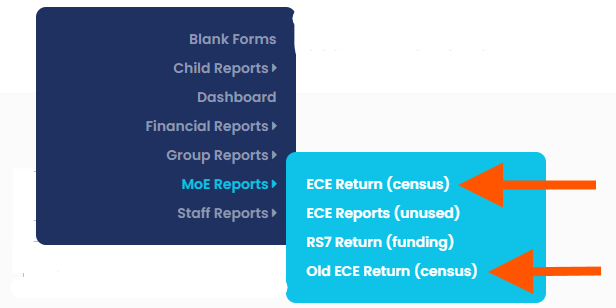
1. The Employee update screen has several new fields that can be populated and this will then auto populate the new ECE Return.
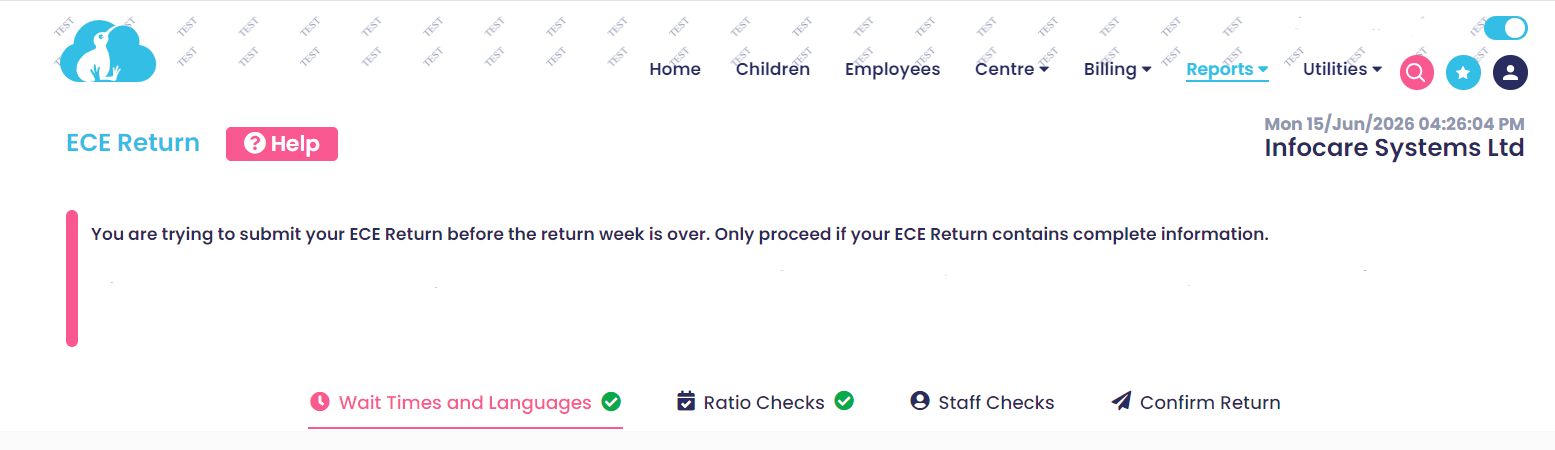
2. The layout of the return has been improved with tabs for each section that needs to be completed.
Wait Times and Languages now appear on one page. Ratio Checks is a new addition. This enables the user to see if there
are any Ratio issues for the Return week.
3. More data is now automatically populated within the ECE Return.
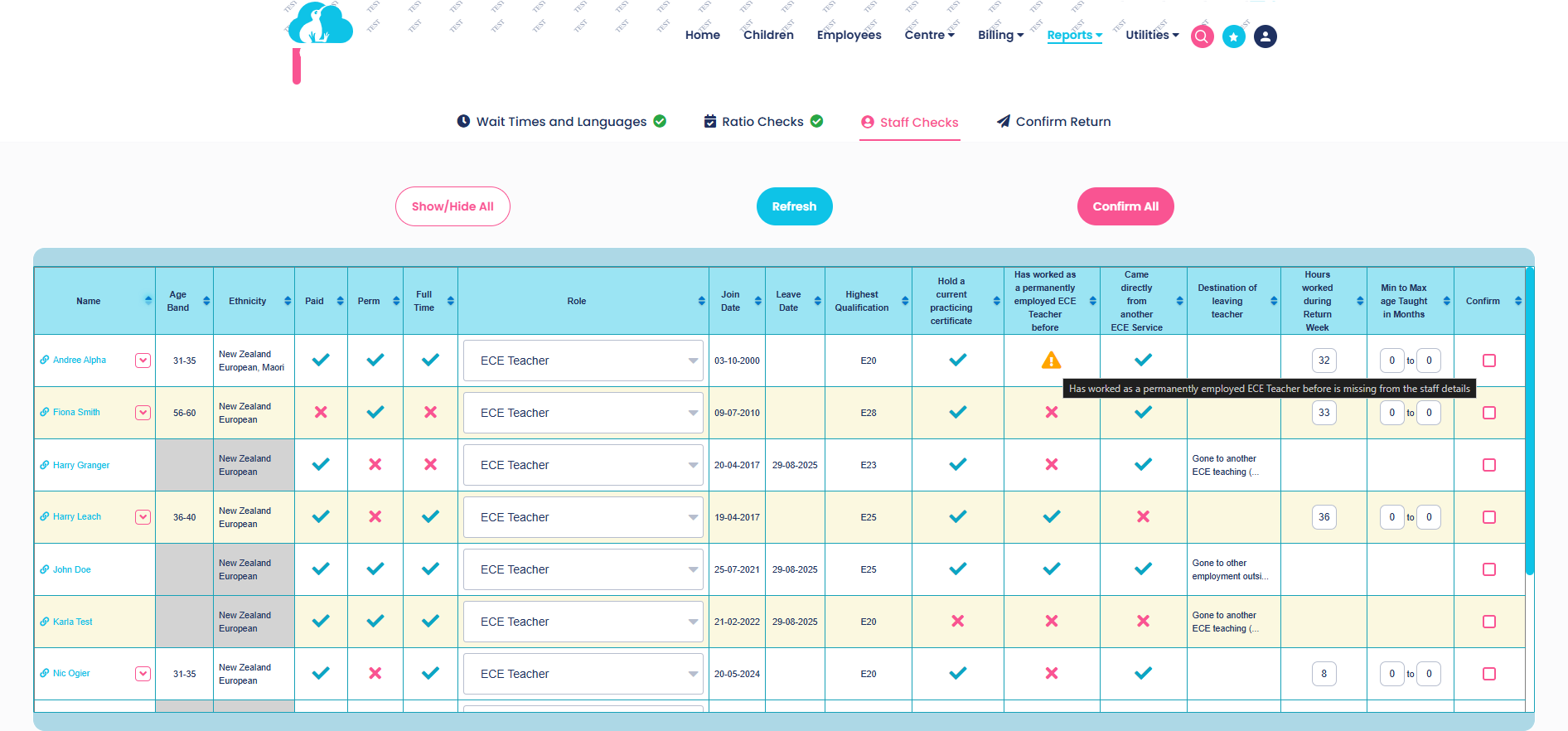
Once data has been updated within the employee's profile screen, the only field that will need to be manually populated within the Staff Checks screen, is the Minimum and Maximum age taught in months fields for each employee.
Rows highlighted with a light yellow colour indicate staff who have worked during Census week that are part of the Central Pool.
An orange warning will appear in the staff checks screen for fields that need to be checked/updated, hover over the warning to see the warning content. You can click on the employees name to go directly to the employee update screen to update any missed/incorrect data. When you return to the ECE return to continue checking select the refresh button.
4. Once each screen within the ECE Return has been successfully completed a green tick will appear next to the screen headings titled Wait Times and Languages/Ratio Checks/Staff Checks/Confirm Return.
5. There is now an ECE Return Log where all future ECE returns will be saved that will appear at the bottom of your ECE Return screen. For those sumbitting the old format, these will still be available to view under Utilities >File Download
Before completing the ECE Return
Before beginning the ECE return, the information within the employee profile screen will need to be updated for all employees who worked in your Service since the last Return submission in July 2025 and for those who work Census week - 22 June - 28th June 2026
New fields that need to be populated are:
a) Has worked as a permanently employed ECE Teacher (or Home-Based Coordinator) before? (Yes/No)
b) Came directly from another ECE Service? (Yes/No)
c) Paid (Yes/No)
d) Full Time (25+ hours) (Yes/No)
e) Role Status
f) Highest ECE Qualification
g) Destination of Leaving teacher - This field will only be visible where a staff member has a leave date entered
The above fields must be populated before the ECE return can be completed and submitted successfully. Currently these fields are not set as mandatory within the Centre's database set up as this would impede entering any data within any employee's profile screen.
Our Customer Success Team can enable these fields to be mandatory moving forward. If you would like this option, please contact our Helpdesk - help@infocaresolutions.co.nz
Frequent Absence Report
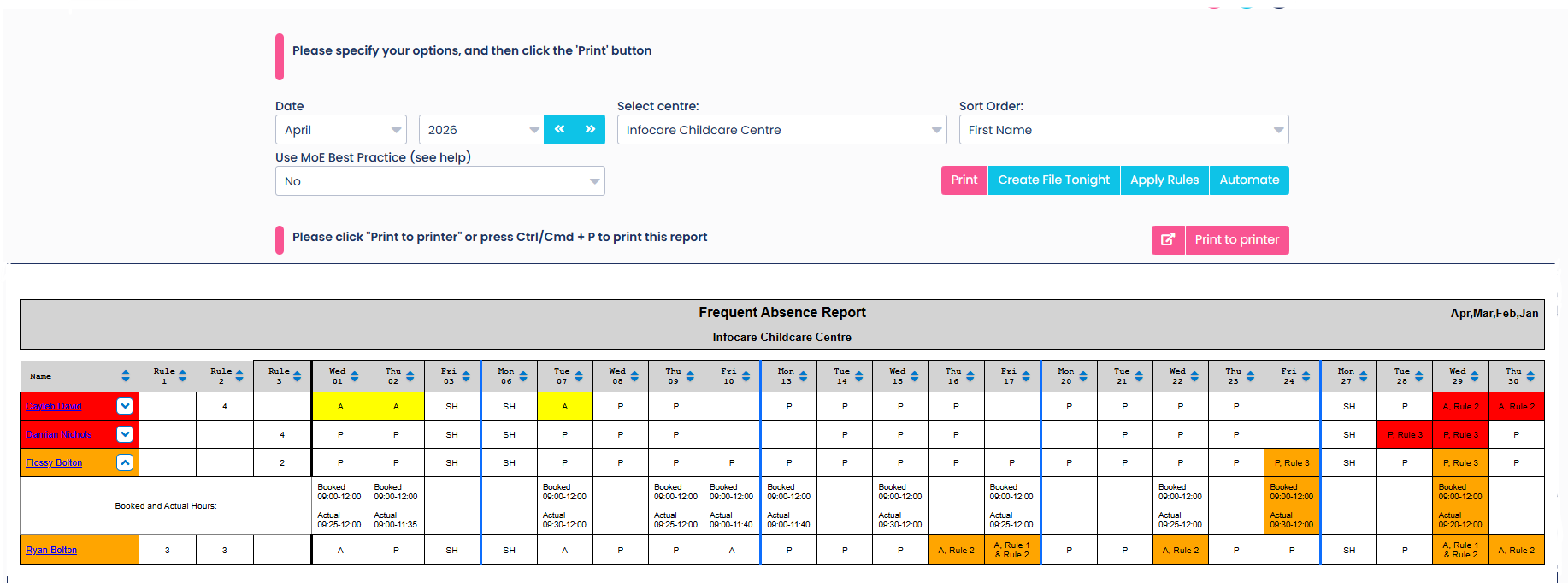
Improvements to the layout of the Frequent Absence Report have been implemented.
1. The report now shows dividers for each week within the calendar month, each week is separated by a blue vertical line
2. The report now clearly shows where Rule 1 and/or Rule 2 has been broken under each date. Previously this was represented by 1, 2 or where both rules were broken the report showed 12.
3. There is also an enhancement to display "A" for Absent or "H" Holiday
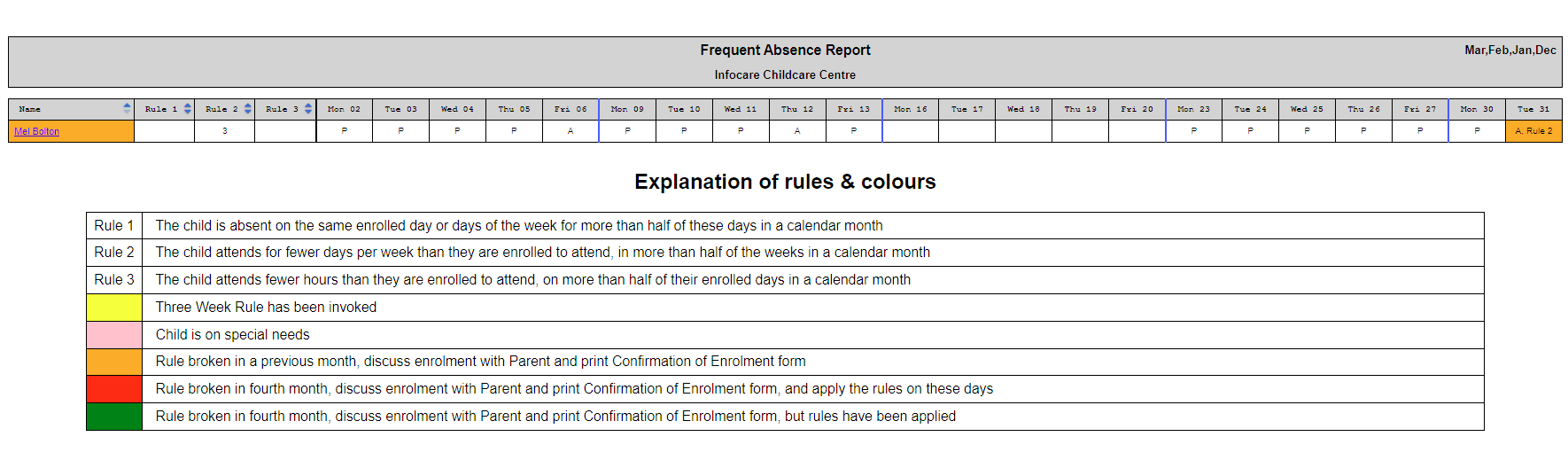
3. Where rule 3 has been broken, a breakdown of the booked and attended times can be seen by clicking the drop-down arrow next to the child's name. Previously this was shown by hovering the mouse over the question mark symbol.